入力ページの実装
入力ページの実装
入力ページのデザイン(CreateHaiku.xaml)
今度は、入力ページを作成します。ソリューションエクスプローラーのプロジェクト名を右クリックして表示される「追加/新しい項目」でPortrait Pageを追加します。名前は、CreateHaiku.xamlとします。LayoutRootのGridのBackgroundに” #FFFFFFFA”を指定し、StackPanel部分をコメントアウトします。
ツールボックスから、今回解説する、季語検索、俳句の入力、翻訳、保存、facebookへの投稿の各機能に用いるコントロールを、図4のようにレイアウトします。
このページには、前回説明したとおり、「一覧」ボタンがタップされた時に、俳句を表示する年月の選択ボックスを重ねて表示します。その選択ボックスは、Canvasの中にレイアウトして、表示と非表示を切り替えます。これは俳句が詠まれた後の処理であるので、次回に解説します。
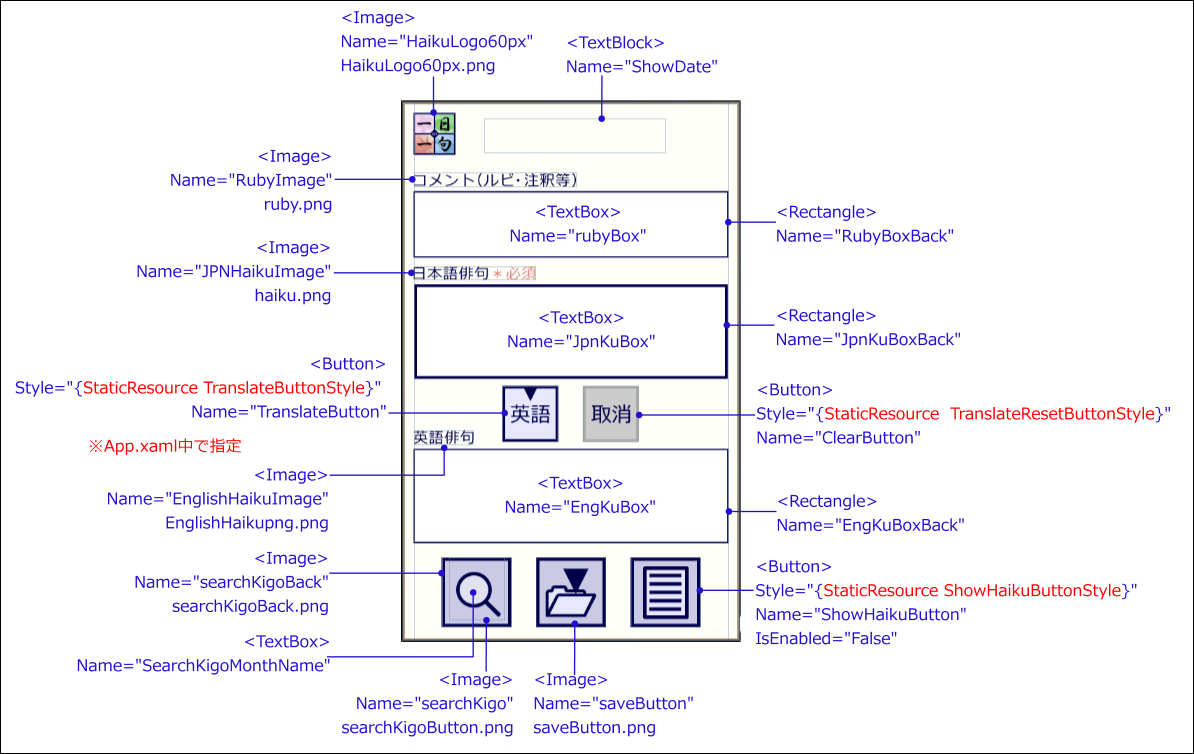 | 図4:入力ページに、入力・保存用のコントロールをレイアウトする(クリックで拡大) |
各コントロールのマージン等のプロパティを調整し、完成したデザイン・コードは、リスト8のようになります。
リスト8 入力ページのデザイン・コード(createHaiku.xaml)
<phone:PhoneApplicationPage
  x:Class="DailyHaiku_in_Japanese.CreateHaiku"
  xmlns="http://schemas.microsoft.com/winfx/2006/xaml/presentation"
  xmlns:x="http://schemas.microsoft.com/winfx/2006/xaml"
  xmlns:phone="clr-namespace:Microsoft.Phone.Controls;assembly=Microsoft.Phone"
  xmlns:shell="clr-namespace:Microsoft.Phone.Shell;assembly=Microsoft.Phone"
  xmlns:d="http://schemas.microsoft.com/expression/blend/2008"
  xmlns:mc="http://schemas.openxmlformats.org/markup-compatibility/2006"
  FontFamily="{StaticResource PhoneFontFamilyNormal}"
  FontSize="{StaticResource PhoneFontSizeNormal}"
  Foreground="{StaticResource PhoneForegroundBrush}"
  SupportedOrientations="Portrait" Orientation="Portrait"
  mc:Ignorable="d" d:DesignHeight="768" d:DesignWidth="480"
  shell:SystemTray.IsVisible="True" Language="ja-JP">

  <!--■ここに俳句の一覧表示のためのファイル・リスト用のコードを追加します。次回に解説します-->

  <!--LayoutRoot is the root grid where all page content is placed-->
  <Grid x:Name="LayoutRoot" Background="#FFFFFFFA">
    <Grid.RowDefinitions>
      <RowDefinition Height="Auto"/>
      <RowDefinition Height="*"/>
    </Grid.RowDefinitions>

    <!--ContentPanel - place additional content here-->
    <Grid x:Name="ContentPanel" Grid.Row="1" Margin="15,0,15,0">

      <!--■俳句入力画面-->
      <!--共通ロゴ-->
      <Image Height="60" HorizontalAlignment="Left" Margin="0,15,0,0" Name="HaikuLogo60px" Stretch="Fill" VerticalAlignment="Top" Width="60" Source="/DailyHaiku_in_Japanese;component/Image/HaikuLogo60px.png" />

      <!--年月日表示-->
      <TextBlock Height="50" HorizontalAlignment="Left" Margin="100,22,0,0" Name="ShowDate" Text="" VerticalAlignment="Top" Width="260" Foreground="#FF00004B" FontSize="32" TextAlignment="Center" />

      <!--入力項目名-->
      <Image Height="21" HorizontalAlignment="Left" Margin="0,100,0,0" Name="RubyImage" Stretch="Fill" VerticalAlignment="Top" Width="233" Source="/DailyHaiku_in_Japanese;component/Image/ruby.png" />
      <Image Height="21" HorizontalAlignment="Left" Margin="0,233,0,0" Name="JPNHaikuImage" Stretch="Fill" VerticalAlignment="Top" Width="175" Source="/DailyHaiku_in_Japanese;component/Image/haiku.png" />
      <Image Height="21" HorizontalAlignment="Left" Margin="0,468,0,0" Name="EnglishHaikuImage" Stretch="Fill" VerticalAlignment="Top" Width="86" Source="/DailyHaiku_in_Japanese;component/Image/EnglishHaikupng.png" />

      <!--入力ボックスの外枠-->
      <Rectangle Height="95" HorizontalAlignment="Left" Margin="0,127,0,0" Name="RubyBoxBack" Stroke="#FF00004B" StrokeThickness="2" VerticalAlignment="Top" Width="450" Fill="White" />
      <Rectangle Height="135" HorizontalAlignment="Left" Margin="1,260,0,0" Name="JpnKuBoxBack" Stroke="#FF00004B" StrokeThickness="4" VerticalAlignment="Top" Width="448" Fill="White" />
      <Rectangle Height="135" HorizontalAlignment="Left" Margin="0,495,0,0" Name="EngKuBoxBack" Stroke="#FF00004B" StrokeThickness="2" VerticalAlignment="Top" Width="450" Fill="White" />

      <!--入力ボックス-->
      <TextBox Height="95" HorizontalAlignment="Left" Margin="0,127,0,0" Name="RubyBox" Text="" VerticalAlignment="Top" Width="450" TextWrapping="Wrap" AcceptsReturn="True" Padding="0" FontSize="22" BorderBrush="{x:Null}" Background="White" />
      <TextBox Height="135" HorizontalAlignment="Left" Margin="0,260,0,0" Name="JpnKuBox" Text="" VerticalAlignment="Top" Width="450" TextWrapping="Wrap" AcceptsReturn="True" Padding="0" FontSize="24" BorderBrush="{x:Null}" Background="White" />
      <TextBox Height="135" HorizontalAlignment="Left" Margin="0,495,0,0" Name="EngKuBox" Text="" VerticalAlignment="Top" Width="450" TextWrapping="Wrap" AcceptsReturn="True" Padding="0" FontSize="24" BorderBrush="{x:Null}" Background="White" />

      <!--翻訳ボタン-->
      <Button Content="翻訳" Height="80" HorizontalAlignment="Left" Margin="127,405,0,0" Name="TranslateButton" VerticalAlignment="Top" Width="80" Style="{StaticResource TranslateButtonStyle}" />
      <Button Content="取消" Height="80" HorizontalAlignment="Left" Margin="242,405,0,0" Name="ClearButton" VerticalAlignment="Top" Width="80" Style="{StaticResource  TranslateResetButtonStyle}" />

      <!--季語検索-->
      <Image Height="100" HorizontalAlignment="Left" Margin="40,650,0,0" Name="SearchKigoBack" Stretch="Fill" VerticalAlignment="Top" Width="100" Source="/DailyHaiku_in_Japanese;component/Image/SearchKigoBack.png" />
      <TextBlock Height="90" HorizontalAlignment="Left" Margin="50,650,0,0" Name="SearchKigoMonthName" VerticalAlignment="Top" Width="80" FontSize="72" Opacity="0.7" FontWeight="Bold" Foreground="#FF4D4DA7" TextAlignment="Center" />
      <Image Height="100" HorizontalAlignment="Left" Margin="40,650,0,0" Name="SearchKigo" Stretch="Fill" VerticalAlignment="Top" Width="100" Source="/DailyHaiku_in_Japanese;component/Image/SearchKigoButton.png" />

      <!--保存、一覧ボタン-->
      <Image Height="100" HorizontalAlignment="Left" Margin="175,650,0,0" Name="SaveButton" Stretch="Fill" VerticalAlignment="Top" Width="100" Source="/DailyHaiku_in_Japanese;component/Image/SaveButton.png" />
      <Button Height="100" Style="{StaticResource ShowHaikuButtonStyle}"  HorizontalAlignment="Left" Margin="310,650,0,0" Name="ShowHaikuButton" VerticalAlignment="Top" Width="100" IsEnabled="False" />

      <!--■俳句の一覧表示のための、ファイル・リストのウィンドウを追加します。次回に解説します-->
    </Grid>
  </Grid>
</phone:PhoneApplicationPage>
この中で、「一覧」ボタンは、ImageコントロールではなくButtonコントロールを使います。このボタンは俳句が記録されていない場合は機能させないので、IsEnabledにFalseを指定する必要があるからです。また、「翻訳」「取消」についても、ここではButtonコントロールを使っています。
これらのボタンのスタイルは、App.xaml内に指定します。リスト9のように、
この記事をシェアしてください
関連記事
バックナンバー


この記事の筆者

Think ITでは、技術情報が詰まったメールマガジン「Think IT Weekly」の配信サービスを提供しています。メルマガ会員登録を済ませれば、メルマガだけでなく、さまざまな限定特典を入手できるようになります。