MainPage.xamlの編集とコントロールの追加
MainPage.xamlの編集とコントロールの追加
x:NameがPageTitleというTextBlockを削除します。
ツールボックスからListBoxを2個、TextBoxを1個、Buttonを1個配置します。ButtonのContentプロパティには「OK」と指定します。次に背景色を変えるには、ContentPanelというNameを持つ
|
| 図5:各コントロールを配置し背景色を設定した(クリックで拡大) |

書き出されるXAMLコードをリスト2のように編集します。
リスト2 編集されたXAMLコード(MainPage.xaml)
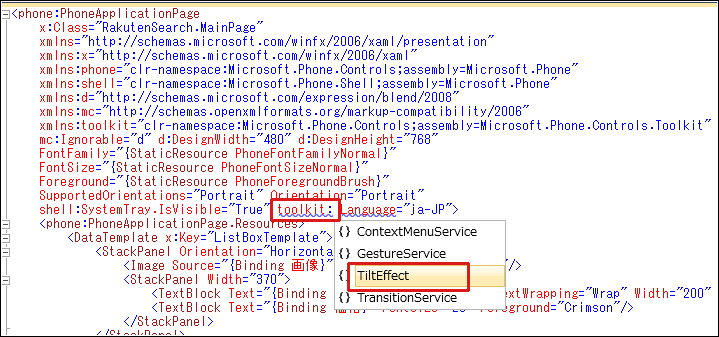
(1)ControlTiltEffectの効果を有効にするために、<phone:PhoneApplicationPage>要素内に、toolkit:と入力するとインテリセンスが機能し、TiltEffect.IsTileEnabled=”True”と選択していくことができます(図6)。
  Windows Phone 7.1 SDK 日本語版では、フォントの設定なしにアプリケーションを実行し、タイトルやテキストに日本語を使った場合、日本語フォントが使われないで変な表示になってしまうことがあります。これを解消するには、書き出されるXAMLコードのアプリケーションのトップである<phone:PhoneApplicationPage>要素内に、
 Language=  "ja-JP"
と指定しておきます。
(2)<phone:PhoneApplicationPage.Resources> プロパティ要素内に配置した、<DataTemplate> 要素に、ListBoxTemplate というキー名を付け、中に <StackPanel>要素を配置し、その中に<Image>要素を配置します。Sourceプロパティに「画像」をバインドします。さらに<StackPanel>要素を配置し、中に、<TextBlock> 要素を 2 個配置します。Text プロパティに、「商品名」と「価格」をそれぞれバインドします。Foreground(文字色)も設定しています。
ここで指定する名称は VB コード内のクラスで定義するプロパティ名です。
(3)(2)のテンプレートが、ListBoxのItemTemplateに指定され参照されます。

<phone:PhoneApplicationPage
  x:Class="RakutenSearch.MainPage"
  xmlns="http://schemas.microsoft.com/winfx/2006/xaml/presentation"
  xmlns:x="http://schemas.microsoft.com/winfx/2006/xaml"
  xmlns:phone="clr-namespace:Microsoft.Phone.Controls;assembly=Microsoft.Phone"
  xmlns:shell="clr-namespace:Microsoft.Phone.Shell;assembly=Microsoft.Phone"
  xmlns:d="http://schemas.microsoft.com/expression/blend/2008"
  xmlns:mc="http://schemas.openxmlformats.org/markup-compatibility/2006"
  mc:Ignorable="d" d:DesignWidth="480" d:DesignHeight="768"
  FontFamily="{StaticResource PhoneFontFamilyNormal}"
  FontSize="{StaticResource PhoneFontSizeNormal}"
  Foreground="{StaticResource PhoneForegroundBrush}"
  SupportedOrientations="Portrait" Orientation="Portrait"
  shell:SystemTray.IsVisible="True" toolkit:TiltEffect.IsTiltEnabled="True" Language=”ja-JP”> ■(1)
  <phone:PhoneApplicationPage.Resources> ■(2)
    <DataTemplate x:Key="ListBoxTemplate"> ■(2)
      <StackPanel Orientation="Horizontal" Margin="5">
        <Image Source="{Binding 画像}" Width="128" Height="128"/> ■(2)
        <StackPanel Width="370">
          <TextBlock Text="{Binding 商品名}" FontSize="20" TextWrapping="Wrap" Width="200" Foreground="Navy"/> ■(3)
          <TextBlock Text="{Binding 価格}" FontSize="20" Foreground="Crimson"/> ■(3)
        </StackPanel>
      </StackPanel>
    </DataTemplate>
  </phone:PhoneApplicationPage.Resources>
  <!--LayoutRoot is the root grid where all page content is placed-->
  <Grid x:Name="LayoutRoot" Background="Transparent">
    <Grid.RowDefinitions>
      <RowDefinition Height="Auto"/>
      <RowDefinition Height="*"/>
    </Grid.RowDefinitions>

    <!--TitlePanel contains the name of the application and page title-->
    <StackPanel x:Name="TitlePanel" Grid.Row="0" Margin="12,17,0,28">
      <TextBlock x:Name="ApplicationTitle" Text="楽天検索" Style="{StaticResource PhoneTextNormalStyle}"/>
    </StackPanel>

    <!--ContentPanel - place additional content here-->
    <Grid x:Name="ContentPanel" Grid.Row="1" Margin="12,0,12,0" Background="Gold">
      <ListBox Height="100" HorizontalAlignment="Left" Margin="28,21,0,0" Name="genreListBox" VerticalAlignment="Top" Width="396" Background="Gainsboro" Foreground="Navy" Padding="10" />
      <TextBox Height="80" HorizontalAlignment="Left" Margin="15,127,0,0" Name="TextBox1" VerticalAlignment="Top" Width="349" BorderBrush="Black" />
      <Button Content="OK" Height="83" HorizontalAlignment="Left" Margin="349,124,0,0" Name="Button1" VerticalAlignment="Top" Width="101" IsEnabled="False" BorderBrush="Navy" Foreground="Black" />
      <ListBox Height="477" HorizontalAlignment="Left" Margin="15,213,0,0" Name="resultListBox" VerticalAlignment="Top" Width="419" ItemTemplate="{StaticResource ListBoxTemplate}"/> ■(3)
    </Grid>
  </Grid>
~コード略~
</phone:PhoneApplicationPage>
|
| 図6:< phone:PhoneApplicationPage >要素内にtoolkit:と入力するとインテリセンスが機能し、TiltEffect.IsTileEnabled=”True”と選択することができる(クリックで拡大) |
次に、MainPage.xamlを展開して表示される、MainPage.xaml.vbをダブルクリックしてリスト3のコードを記述します。
「楽天Webサービスを利用したジャンル別商品検索」サンプルプログラム
You don't have access to download this file.
この記事をシェアしてください
バックナンバー


この記事の筆者

Think ITでは、技術情報が詰まったメールマガジン「Think IT Weekly」の配信サービスを提供しています。メルマガ会員登録を済ませれば、メルマガだけでなく、さまざまな限定特典を入手できるようになります。