Windows ストア空白のページの作成(WebBrowserPage.xaml)
<Page
  x:Class="TouristOfTheWorld.MainPage"
  xmlns="http://schemas.microsoft.com/winfx/2006/xaml/presentation"
  xmlns:x="http://schemas.microsoft.com/winfx/2006/xaml"
  xmlns:local="using:TouristOfTheWorld"
  xmlns:d="http://schemas.microsoft.com/expression/blend/2008"
  xmlns:mc="http://schemas.openxmlformats.org/markup-compatibility/2006"
  mc:Ignorable="d">
  <Page.Resources>■(1)
    <DataTemplatex:Key="GridViewTemplate">■(1)
      <StackPanel  Width="370" Background="Silver" Height="Auto" Margin="5">■(1)
        <TextBlock Text="{Binding name}" Width="350" TextWrapping="Wrap" FontFamily="Meiryo UI" FontSize="24" Foreground="Crimson" Height="Auto"/>■(1)
        <StackPanel Width="370" Background="Beige">■(1)
        <TextBlock Text="{Binding title}" Width="350" TextWrapping="Wrap" FontFamily="Meiryo UI" FontSize="22" Foreground="Green" Height="Auto"/>■(1)
        </StackPanel>■(1)
        <StackPanel Width="370" Height="Auto" Background="White">■(1)
        <TextBlock Text="{Binding description}" Width="350" TextWrapping="Wrap" FontFamily="Meiryo UI" FontSize="20" Foreground="Navy" Height="380"/>■(1)
        </StackPanel>■(1)
      </StackPanel>■(1)
    </DataTemplate>■(1)
  </Page.Resources>■(1)
  <Grid Background="{StaticResourceApplicationPageBackgroundThemeBrush}" Margin="0,80,0,0">
    <TextBlockx:Name="TitleTextBlock" Margin="63,-70,980,699" FontFamily="Meiryo UI" FontSize="36" FontWeight="Bold" TextAlignment="Center" />■(2)
    <ScrollViewerHorizontalScrollBarVisibility="Visible" Margin="68,104,0,0" VerticalScrollBarVisibility="Visible">■(3)
      <GridViewx:Name="GridView1" HorizontalAlignment="Left" Height="586" VerticalAlignment="Top" Width="1298" FlowDirection="LeftToRight" ItemTemplate="{StaticResourceGridViewTemplate}" />■(4)
    </ScrollViewer>
    <Frame x:Name="myFrame" HorizontalAlignment="Left" Height="688" Margin="68,0,0,0" VerticalAlignment="Top" Width="1298"/>■(5)
    <Button x:Name="backButton"  Style="{StaticResourceResourceKey=BackButtonStyle}" HorizontalAlignment="Left" Height="45" Margin="0,-70,0,0" VerticalAlignment="Top" Width="63"/>■(6)
    <ComboBoxx:Name="ComboBox1" HorizontalAlignment="Left" Height="59" Margin="981,-70,0,0" VerticalAlignment="Top" Width="385" FontFamily="Meiryo UI" FontSize="36">■(7)
      <ComboBoxItem Content="アジア"/>■(7)
      <ComboBoxItem Content="ビーチリゾート"/>■(7)
      <ComboBoxItem Content="ハワイ"/>■(7)
      <ComboBoxItem Content="ヨーロッパ"/>■(7)
      <ComboBoxItem Content="アメリカ"/>■(7)
      <ComboBoxItem Content="オセアニア"/>■(7)
      <ComboBoxItem Content="アフリカ・その他"/>■(7)
    </ComboBox>■(7)
    <TextBlock  Margin="475,-66,683,713" FontFamily="Meiryo UI" FontSize="30" FontWeight="Bold" TextAlignment="Center" Text="場所を選択"/>■(8)
    <Image Width="281" Height="65" Source="Image/kankou.png" Margin="1085,623,0,0"/>■(9)
  </Grid>
</Page>
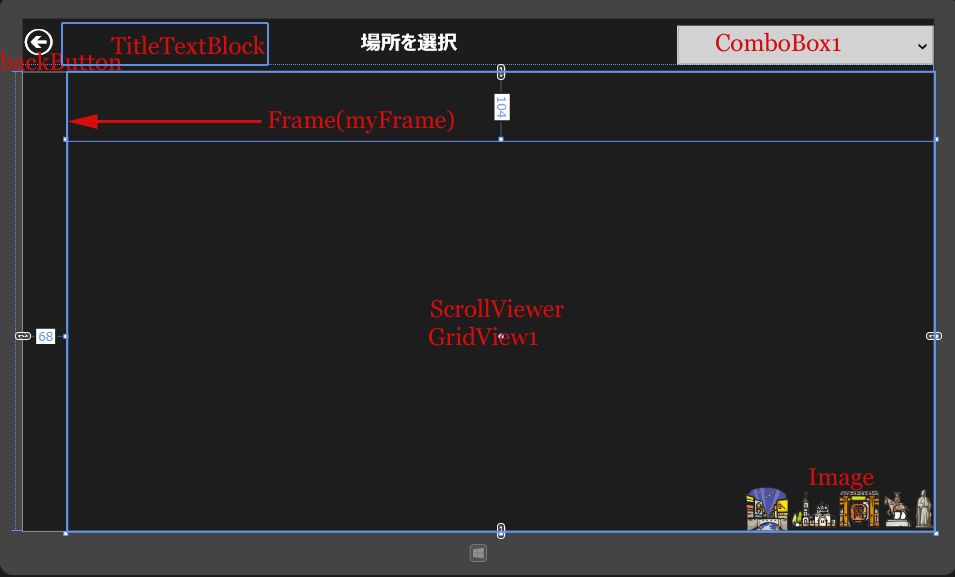
図3:各コントロールを配置している(クリックで拡大)
Windows ストア空白のページの作成(WebBrowserPage.xaml)
VS2012のメニューの「プロジェクト(P)/新しい項目の追加(W)」と選択して、左に表示される項目からWindows ストアを選択します。
右に表示されるテンプレートから「空白のページ」を選択します。「名前(N):」にはWebBrowserPage.xamlと指定して、[追加(A)]ボタンをクリックします。
コントロールの配置
表示されたWebBrowserPage.xamlのデザイン画面に、ツールボックスからWinRTXAML Toolkitのコントロールである、WebBrowserコントロールを1個配置します(図4)。書き出されるXAMLはリスト2になります。

図4:WebBrowserコントロールを配置した(クリックで拡大)
リスト2 書き出されたXAMLコード(WebBrowserPage.xaml)
- (1) WinRTXAML Toolkitのコントロールを使用すると、自動的にControlsという名前空間が追加されます。
- (2) WebBrowser1という名前の
<Page
  xmlns="http://schemas.microsoft.com/winfx/2006/xaml/presentation"
  xmlns:x="http://schemas.microsoft.com/winfx/2006/xaml"
  xmlns:local="using:TouristOfTheWorld"
  xmlns:d="http://schemas.microsoft.com/expression/blend/2008"
  xmlns:mc="http://schemas.openxmlformats.org/markup-compatibility/2006"
  xmlns:Controls="using:WinRTXamlToolkit.Controls"■(1)
  x:Class="TouristOfTheWorld.WebBrowserPage"
  mc:Ignorable="d">
  <Grid Background="{StaticResourceApplicationPageBackgroundThemeBrush}">
    <Controls:WebBrowserx:Name="WebBrowser1" HorizontalAlignment="Left" Height="704" VerticalAlignment="Top" Width="1357" />■(2)
  </Grid>
</Page>
世界の観光地を表示・検索するプログラム
You don't have access to download this file.
この記事をシェアしてください
関連記事


バックナンバー


この記事の筆者

Think ITでは、技術情報が詰まったメールマガジン「Think IT Weekly」の配信サービスを提供しています。メルマガ会員登録を済ませれば、メルマガだけでなく、さまざまな限定特典を入手できるようになります。