


これから始めるWindows Phone プログラミング(基本編) 第7回
MainPage.xamlの編集
MainPage.xamlの編集
リスト2 書き出され編集されたXAMLコード(MainPage.xaml)
(1)エミュレーターを横に倒した場合、画像もそれに伴って横向きに表示されるようにするには、PhoneApplicationPageを選択し、表示されるプロパティウィンドウの[その他]パネルにあるSupportedOrientationsプロパティに、PortraitOrLandscapeを指定します。
(2)第3回の連載で解説したPage Transitionのコードを記述しています。TurnstileTransition効果を持たせています。Transition効果を有効にするには、第3回の解説を参考にApp.xaml.vb内を書き換えてください。
(3)<phone:PhoneApplicationPage.Resources>プロパティ要素内に、ListBoxTemplateというキーのテンプレートを定義します。<StackPanel>要素内に、<TextBlock>要素を配置し、Textプロパティに「タイトル」をバインドします。次に<Image>要素を配置し、WidthとHeightを指定して、Sourceプロパティに「画像名」をバインドします。Marginプロパティに10を指定して、余白を設けます。<StackPanel>要素のスタックされる要素の向きを設定するOrientationプロパティの値は、デフォルトでVerticalですので、タイトルの下に画像が表示されるようになります。ここで指定する名称はVBコード内のクラスで定義するプロパティ名です。
(4)<controls:Pivot >要素の、最初の子要素<controls:PivotItem>のHeaderプロパティに、「画像一覧」と指定します。
(5)<controls:PivotItem>要素内の、x:NameがListBox1の<ListBox>要素のItemTemplateに(3)で定義したListBoxTemplateを参照させます。
(6)2番目のPivot itemの<controls:PivotItem>要素のHeaderプロパティに「個人情報」と指定します。子要素として<ListBox>要素を配置します。文字サイズは40としておきます。
(7)3番目のPivot itemの<controls:PivotItem>要素のHeaderプロパティに「My Favorite Site」と指定します。子要素として<ListBox>要素を配置します。文字サイズは40としておきます。
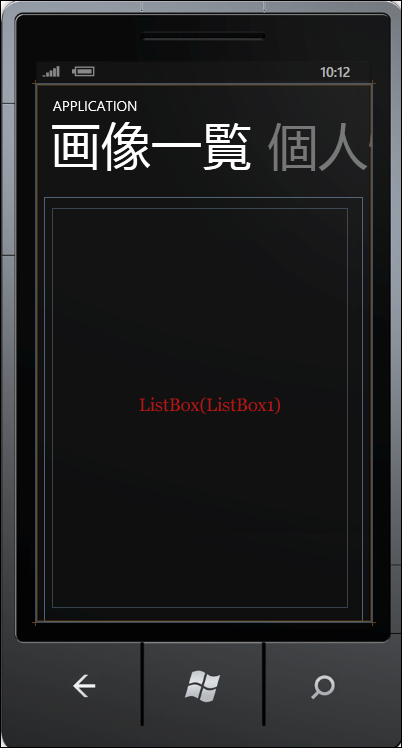
全て設定すると図7のようになります。

<phone:PhoneApplicationPage
  x:Class="WP7_Pivot.MainPage"
  xmlns="http://schemas.microsoft.com/winfx/2006/xaml/presentation"
  xmlns:x="http://schemas.microsoft.com/winfx/2006/xaml"
  xmlns:phone="clr-namespace:Microsoft.Phone.Controls;assembly=Microsoft.Phone"
  xmlns:shell="clr-namespace:Microsoft.Phone.Shell;assembly=Microsoft.Phone"
  xmlns:controls="clr-namespace:Microsoft.Phone.Controls;assembly=Microsoft.Phone.Controls"
  xmlns:d="http://schemas.microsoft.com/expression/blend/2008"
  xmlns:mc="http://schemas.openxmlformats.org/markup-compatibility/2006"
  xmlns:toolkit="clr-namespace:Microsoft.Phone.Controls;assembly=Microsoft.Phone.Controls.Toolkit"
  mc:Ignorable="d" d:DesignWidth="480" d:DesignHeight="768"
  d:DataContext="{d:DesignData SampleData/MainViewModelSampleData.xaml}"
  FontFamily="{StaticResource PhoneFontFamilyNormal}"
  FontSize="{StaticResource PhoneFontSizeNormal}"
  Foreground="{StaticResource PhoneForegroundBrush}"
  SupportedOrientations="PortraitOrLandscape"  Orientation="Portrait" ■(1)
  shell:SystemTray.IsVisible="True">

  <toolkit:TransitionService.NavigationInTransition> ■(2)
    <toolkit:NavigationInTransition>
      <toolkit:NavigationInTransition.Backward>
        <toolkit:TurnstileTransition Mode="BackwardIn"/>
      </toolkit:NavigationInTransition.Backward>
      <toolkit:NavigationInTransition.Forward>
        <toolkit:TurnstileTransition Mode="ForwardIn"/>
      </toolkit:NavigationInTransition.Forward>
    </toolkit:NavigationInTransition>
  </toolkit:TransitionService.NavigationInTransition>
  <toolkit:TransitionService.NavigationOutTransition>
    <toolkit:NavigationOutTransition>
      <toolkit:NavigationOutTransition.Backward>
        <toolkit:TurnstileTransition Mode="BackwardOut"/>
      </toolkit:NavigationOutTransition.Backward>
      <toolkit:NavigationOutTransition.Forward>
        <toolkit:TurnstileTransition Mode="ForwardOut"/>
      </toolkit:NavigationOutTransition.Forward>
    </toolkit:NavigationOutTransition>
   </toolkit:TransitionService.NavigationOutTransition>

  <phone:PhoneApplicationPage.Resources>
    <DataTemplate x:Key="ListBoxTemplate"> ■(3)
      <StackPanel>
        <TextBlock Text="{Binding タイトル}" />
        <Image Width="320" Height="240" Source="{Binding 画像名}" Margin="10"/>
      </StackPanel>
    </DataTemplate>
  </phone:PhoneApplicationPage.Resources>
    <!--LayoutRoot is the root grid where all page content is placed-->
    <Grid x:Name="LayoutRoot" Background="Transparent">
      <!--Pivot Control-->
      <controls:Pivot Title="APPLICATION" x:Name="Pivot1">
        <!--Pivot item one-->
        <controls:PivotItem Header="画像一覧"> ■(4)
          <Grid>
            <ListBox Height="571" HorizontalAlignment="Left" Margin="11,16,0,0" Name="ListBox1" VerticalAlignment="Top" Width="424" ItemTemplate="{StaticResource ListBoxTemplate}" /> ■(5)
          </Grid>
        </controls:PivotItem>

        <!--Pivot item two-->
        <controls:PivotItem Header="個人情報"> ■(6)
          <ListBox Height="Auto" HorizontalAlignment="Left"  Name="ListBox2"  Width="454" FontFamily="Portable User Interface" FontSize="40" />
        </controls:PivotItem>

        <controls:PivotItem Header="My Favorite Site"> ■(7)
          <ListBox Height="Auto" HorizontalAlignment="Left"  Name="ListBox3"  Width="454" FontFamily="Portable User Interface" FontSize="40" />
        </controls:PivotItem>
      </controls:Pivot>
    </Grid>
    ~コード略~
  </phone:PhoneApplicationPage>
|
| 図7:リスト2を設定して表示されるMainPage.xamlのデザイン画面。表示はされてないが、横に「個人情報」、「My Favorite Site」画面が続いている(クリックで拡大) |
Windows Phone Portrait Page(ImageComment.xaml)の追加
VS2010メニューの「プロジェクト(P)/新しい項目の追加(W)」と選択して、「Windows Phone Portrait Page」を追加します。「名前(N)」には、ImageComment.xamlと指定します(図8)。画像と説明を表示するページです。
|
| 図8:「Windows Phone Portrait Page」を追加する(クリックで拡大) |
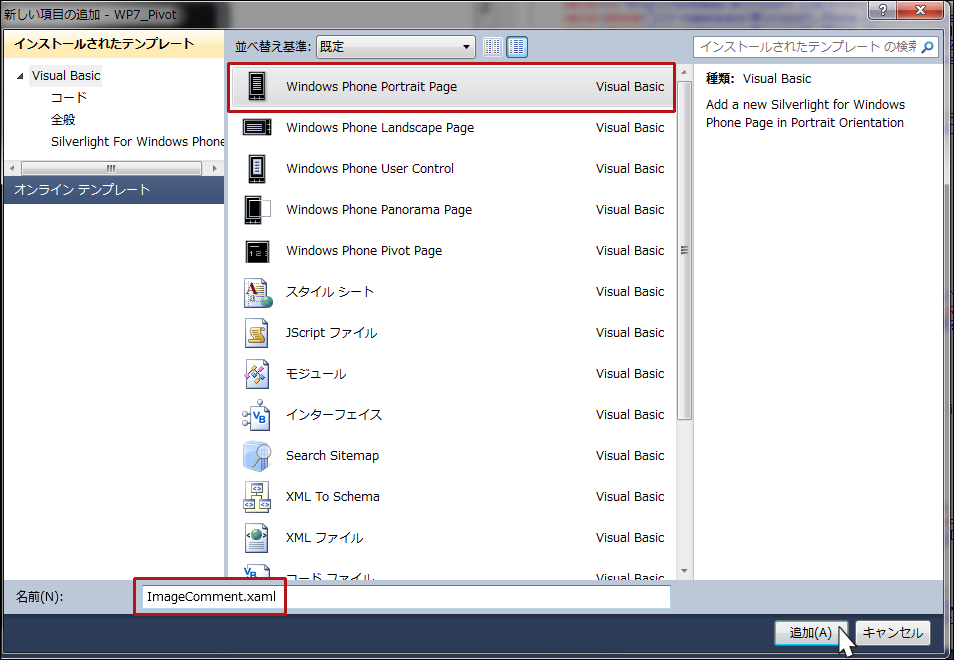
図8から[追加(A)]ボタンをクリックして表示されるエミュレーターデザイン画面上に、ツールボックスからListBoxコントロールを1個配置します。ListBoxコントロールのWidthとHeightにはAutoを指定します。
「ピボットページを作成する(前編)」サンプルプログラム
You don't have access to download this file.
この記事をシェアしてください
関連記事


バックナンバー


この記事の筆者

Think ITでは、技術情報が詰まったメールマガジン「Think IT Weekly」の配信サービスを提供しています。メルマガ会員登録を済ませれば、メルマガだけでなく、さまざまな限定特典を入手できるようになります。

