


Windows Phone Tips集 第2弾 第7回
ロジックコードを記述する
ロジックコードを記述する
リスト2 (MainPage.xaml.vb)
Option Strict On
Imports System.Xml.Linq

位置情報に関するクラスの含まれる、System.Device.Location名前空間をインポートします。
Imports System.Device.Location

Windows Phoneのための、Bing Maps Silverlight Controlのパブリッククラスを含む、Microsoft.Phone.Controls.Maps名前空間をインポートします。
Imports Microsoft.Phone.Controls.Maps

Partial Public Class MainPage
  Inherits PhoneApplicationPage

  ' コンストラクター
  Public Sub New()
    InitializeComponent()
  End Sub
[実行]ボタンがタップされた時の処理
API へのリクエストは、qの条件を下記のような URL で指定します。(REST)
qにはエンコードされた、addressTextBoxに入力された値を指定します。
Dim myUri As String = String.Format("http://www.geocoding.jp/api/?v=1.1&q={0}", HttpUtility.UrlEncode(addressTextBox.Text))
例えば、京都府京都市伏見区桃山町丹後9番地と入力して返されるXMLは、図3のようなXMLです。
|
| 図3:返された結果XML(クリックで拡大) |
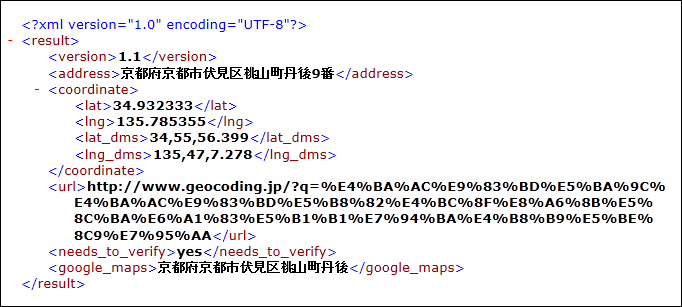
新しいWebClientのインスタンスmyWebClientオブジェクトを生成します。DownloadStringAsyncメソッドで、Uri として指定したリソースをダウンロードします。
AddHandler ステートメントでダウンロードが完了した DownloadStringCompleted イベントに、イベント ハンドラーを追加します。イベント ハンドラー内では、ダウンロードされた文字列としての結果 XML(resultArgs.Result) をXElement.Parseメソッドで文字列として読み込みます。
<coordinate>要素の子要素<lat>(緯度)の値をmyLatitude変数に格納します。
<coordinate>要素の子要素<lng>(経度)の値をmyLongitudeに格納します。
地図を移動させるには、MapのCenterプロパティに、GeoCoordinateメソッドにダブル型に変換した緯度と経度を指定します。緯度は、変数myLatitudeに格納されています。経度は変数myLongitudeに格納されています。ZoomLevelに10を指定します。このプロパティに値を指定しないと地図が表示されませんので、注意してください。
PushPinクラスの新しいインスタンスmyPinオブジェクトを生成します。Locationプロパティに、緯度と経度で初期化されたGeoCoordinateを指定します。ContentプロパティにはaddressTextBoxの値を指定します。ピン上に住所が表示されます。緯度と経度とContentの指定されたmyPinオブジェクトをAddメソッドでMapに追加します。これで指定した位置にピンが立ちます。
  Private Sub Button1_Click(sender As Object, e As System.Windows.RoutedEventArgs) Handles Button1.Click
    Dim myUri As String = String.Format("http://www.geocoding.jp/api/?v=1.1&q={0}", HttpUtility.UrlEncode(addressTextBox.Text))
    Dim myWebClient As New WebClient
    myWebClient.DownloadStringAsync(New Uri(myUri, UriKind.Absolute))

    AddHandler myWebClient.DownloadStringCompleted, Sub(resultSender As Object, resultArgs As DownloadStringCompletedEventArgs)
              Dim xmldoc As XElement = XElement.Parse(resultArgs.Result)
              Dim myLatitude As String = xmldoc.Descendants("coordinate").Elements("lat").Value
              Dim myLongitude As String = xmldoc.Descendants("coordinate").Elements("lng").Value
              Map1.Center = New GeoCoordinate(Double.Parse(myLatitude), Double.Parse(myLongitude))
              Map1.ZoomLevel = 10
              Dim myPin As New Pushpin
              myPin.Location = New GeoCoordinate(Double.Parse(myLatitude), Double.Parse(myLongitude))
              myPin.Content = addressTextBox.Text
              Map1.Children.Add(myPin)
                           End Sub
  End Sub
[航空写真]がタップされた時の処理
ボタンの文字で条件分岐を行います。
ボタンの文字が「航空写真」の時タップされれば、地図は航空写真モードで表示されます。ボタンの文字は「道路表示」に変わります。
ボタンの文字が「道路表示」の時タップされれば、地図は道路表示モードで表示されます。ボタンの文字は「航空写真」に変わります。
  Private Sub Button2_Click(sender As Object, e As System.Windows.RoutedEventArgs) Handles Button2.Click
    Select Case Button2.Content.ToString
      Case "航空写真"
        Map1.Mode = New AerialMode
        Button2.Content = "道路表示"
      Case "道路表示"
        Map1.Mode = New RoadMode
        Button2.Content = "航空写真"
      End Select
    End Sub
  End Class
「住所の位置をBing Mapsに表示する」サンプルプログラム
You don't have access to download this file.
「位置に画像付きピンを表示する」サンプルプログラム
You don't have access to download this file.
この記事をシェアしてください
関連記事


バックナンバー


この記事の筆者

Think ITでは、技術情報が詰まったメールマガジン「Think IT Weekly」の配信サービスを提供しています。メルマガ会員登録を済ませれば、メルマガだけでなく、さまざまな限定特典を入手できるようになります。

