


Eclipse実践プラグイン開発 第3回
ボタン(Button)
ボタン(Button)
SWTのorg.eclipse.swt.widgets.Buttonクラスは、SwingのJButton、JCheckBox、 JRadioButton、JToggleButtonに対応します。スタイルを変更することで、以下のような様々な種類のボタンを作成できます。
通常のボタン

Button normalButton = new Button(parent, SWT.NONE);
normalButton.setText("NormalButton");
normalButton.setBounds(x, y, width, height);
フラットボタン
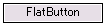
Button flatButton = new Button(parent, SWT.FLAT);
flatButton.setText("FlatButton");
flatButton.setBounds(x, y, width, height);
チェックボタン(チェックボックス)
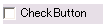
Button checkButton = new Button(parent, SWT.CHECK);
checkButton.setText("CheckButton");
checkButton.setBounds(x, y, width, height);
ラジオボタン(グループなし)
グループの指定をせずにラジオボタンを作成すると、同一のコンポジットに属するボタンに対して自動的に排他制御がかかります。画面内のラジオボタンに細かく排他制御を設定したい場合は、下記のラジオボタン(グループあり)を参照して下さい。

Button radioButton1 = new Button(parent, SWT.RADIO);
radioButton1.setText("100");
radioButton1.setBounds(x, y, width, height);

y += alignY;
Button radioButton2 = new Button(parent, SWT.RADIO);
radioButton2.setText("200");
radioButton2.setBounds(x, y, width, height);
ラジオボタン(グループあり)
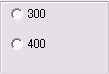
⁄⁄ グループの生成
Group group = new Group(parent, SWT.NONE);
group.setBounds(10, 10, 120, 80);

// 親をグループに作成したグループを指定
Button radioButton3 = new Button(group, SWT.RADIO);
radioButton3.setText("300");
radioButton3.setBounds(10, 10, 100, 20);

Button radioButton4 = new Button(group, SWT.RADIO);
radioButton4.setText("400");
radioButton4.setBounds(10, 40 , 100, 20);
トグルボタン
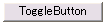
Button toggleButton = new Button(parent, SWT.TOGGLE);
toggleButton.setText("ToggleButton");
toggleButton.setBounds(x, y, width, height); 
テキスト(Text)
SWTのorg.eclipse.swt.widgets.Textクラスは、SwingのJTextField、JTextAreaに対応します。スタイルを変更することで、以下のような様々な種類のテキストを作成できます。
入力テキスト
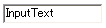
Text inputText = new Text(parent, SWT.BORDER | SWT.NONE);
inputText.setBounds(x, y, width, height);
パスワードテキスト

Text passwordText = new Text(parent, SWT.BORDER | SWT.PASSWORD);
passwordText.setBounds(x, y, width, height);
スクロールテキスト
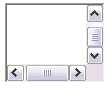
Text scrollableText = new Text(parent, SWT.BORDER | SWT.V_SCROLL | SWT.H_SCROLL);
scrollableText.setBounds(x, y, width, height * 4);
入力値のチェックや日本語入力の制御などもリスナーを使用して行います。たとえば数値だけ入力 できるテキストを作成する場合は、以下のようにorg.eclipse.swt.events.FocusAdapterクラスを継承したクラスを作成 し、addFocusListener(new TextFocusAdapter());でリスナーとして追加します。
⁄**
 * 数値のチェックを行うアダプタクラス
 *⁄
class TextFocusAdapter extends FocusAdapter {

    ⁄**
     * フォーカスが当たった場合の処理
     *⁄
    public void focusGained(FocusEvent e) {
        ⁄⁄ 数値のみの入力なので、IMEをOFFにする
        Display.getCurrent().getActiveShell().setImeInputMode(SWT.NONE);
    }

    ⁄**
     * フォーカスが外れた場合の処理
     *⁄
    public void focusLost(FocusEvent e) {
        Text source = (Text)e.getSource();
        String text = source.getText();

        if (text.length() != 0) {
            ⁄⁄ 数値以外が含まれた場合
            if (!RegexCheck.checkRegex("[0-9]*", text)) {
                source.setText("数値で入力してください");
            }
        }
     }

}この記事をシェアしてください
関連記事
バックナンバー
この記事の筆者

Think ITでは、技術情報が詰まったメールマガジン「Think IT Weekly」の配信サービスを提供しています。メルマガ会員登録を済ませれば、メルマガだけでなく、さまざまな限定特典を入手できるようになります。

