


Eclipse実践プラグイン開発 第6回
ビューの分割
ビューの分割
ビューを分割して表示する方法について説明します。
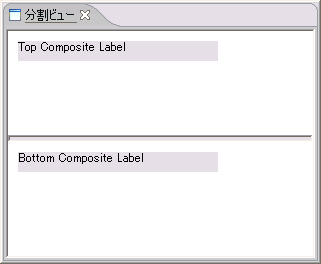
図10:ビューの分割
ビューを分割して表示する場合には、org.eclipse.swt.custom.SashFormクラスを使用し、SashFormクラスを親としたCompositeクラスを作成します。setOrientationメソッドでSWT.HORIZONTALを指定すると横に分割できます。また分割の割合の初期値を変更するには、setWeightsメソッドで分割の比率を指定します。
SashForm sashForm = new SashForm
(parent, SWT.BORDER | SWT.V_SCROLL | SWT.H_SCROLL);
sashForm.setOrientation(SWT.VERTICAL);

⁄⁄ 上側コンポジット
Composite topComposite = new Composite(sashForm, SWT.NONE);
topComposite.setBackground
(Display.getDefault().getSystemColor(SWT.COLOR_WHITE));
topComposite.setLayout(null);

⁄⁄ ラベル
Label topLabel = new Label(topComposite, SWT.NONE);
topLabel.setText("Top Composite Label");
topLabel.setBounds(10, 10, 200, 20);

⁄⁄ 下側コンポジット
Composite bottomComposite = new Composite(sashForm, SWT.NONE);
bottomComposite.setBackground
(Display.getDefault().getSystemColor(SWT.COLOR_WHITE));
bottomComposite.setLayout(null);

⁄⁄ ラベル
Label bottomLabel = new Label(bottomComposite, SWT.NONE);
bottomLabel.setText("Bottom Composite Label");
bottomLabel.setBounds(10, 10, 200, 20); 
タブによるビューの切り替え
タブでビューを切り替える方法について説明します。
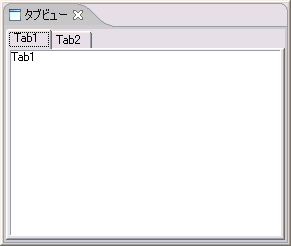
図11:タブによるビューの切り替え
タブでビューを切り替える場合には、org.eclipse.swt.widgets.TabFolderクラスを使用し、TabFolderクラスを親としたorg.eclipse.swt.widgets.TabItemクラスを作成します。
TabFolder tabFolder = new TabFolder(parent, SWT.NULL);

⁄⁄ 1つめのタブ(TabItem)を作成
TabItem item1 = new TabItem(tabFolder, SWT.NULL);
item1.setText("Tab1");

⁄⁄ 1つめのタブ(TabItem)にラベルを作成
Label label1 = new Label(tabFolder, SWT.BORDER);
label1.setText("Tab1");
label1.setBackground
(Display.getDefault().getSystemColor(SWT.COLOR_WHITE));
item1.setControl(label1);

⁄⁄ 2つめのタブ(TabItem)を作成
TabItem item2 = new TabItem(tabFolder, SWT.NULL);
item2.setText("Tab2");

⁄⁄ 2つめのタブにLabelを追加
Label label2 = new Label(tabFolder, SWT.BORDER);
label2.setText("Tab2");
label2.setBackground
(Display.getDefault().getSystemColor(SWT.COLOR_WHITE));
item2.setControl(label2);
まとめ
今回はビューの拡張方法についてみてきましたが、いかがでしたでしょうか。ビューはプラグイン開発で最も利用する部分であるため、ビューをしっかり理解することにより、プラグイン開発の基礎を身につけることができます。
今回のポイントは、以下のとおりです。
- ビューを追加する拡張ポイントは、"org.eclipse.ui.views"
- ビュー・アクションを追加する拡張ポイントは、"org.eclipse.ui.viewActions"
- ビュー・クラスがインプリメントするインターフェースは、"org.eclipse.ui.IViewPart"
- ビュー・アクション・クラスがインプリメントするインターフェースは、"org.eclipse.ui.IViewActionDelegate"
次回は、エディタの拡張について説明します。
この記事をシェアしてください
関連記事



バックナンバー
この記事の筆者

Think ITでは、技術情報が詰まったメールマガジン「Think IT Weekly」の配信サービスを提供しています。メルマガ会員登録を済ませれば、メルマガだけでなく、さまざまな限定特典を入手できるようになります。

