


Windows Phone Tips集 第3弾 第1回
ロジックコードを記述する
次に、MainPage.xamlを展開して表示される、MainPage.xaml.vbをダブルクリックしてリスト2のコードを記述します。
ロジックコードを記述する
リスト2 (MainPage.xaml.vb)
Option Strict On
Silverlight ベースのアプリケーション内の描画、テキスト、オーディオ コンテンツ、ビデオ コンテンツなどのメディアを提供するクラスの含まれる、System.Windows.Media名前空間をインポートします。
Imports System.Windows.Media

仮想ファイルシステムを作成および使用するための型が含まれている、System.IO.IsolatedStorage名前空間をインポートします。分離ストレージによって、安全なクライアント側のストレージが提供されます。
Imports System.IO.IsolatedStorage
Partial Public Class MainPage
  Inherits PhoneApplicationPage

  ' コンストラクター
  Public Sub New()
    InitializeComponent()
  End Sub

ビデオ キャプチャに関連付けられている、キャプチャ デバイスから使用するためのメソッドを提供する、新しいCaptureSourceクラスのインスタンス、mySourceをメンバ変数として宣言します。
  Dim mySource As New CaptureSource

ビデオキャプチャに Windows PhoneのSilverlight をファイルに保存するために使用する、新しいFileSinkクラスのインスタンス、fsをメンバ変数として宣言します。
  Dim fs As New FileSink

ビデオコンテンツで領域を塗りつぶす、VideoBrushクラス型のメンバ変数myVideoBrushを宣言します。
  Dim myVideoBrush As VideoBrush

保存されるビデオのファイル名はsample.mp4と固定しておきます。全てこのファイル名に上書きされます。
  Const fileName As String = "sample.mp4"
ページがアクティブになった時の処理
変数isostoreを、ファイルとディレクトリを格納している分離ストレージ領域を表すIsolateStorageFileクラスとして宣言します。FileExistsメソッドでsample.mp4というファイルが存在しているかどうかをチェックし、存在している場合は、[再生画面へ遷移]ボタンを使用可能にします。それ以外は使用不可とします。
  Protected Overrides Sub OnNavigatedTo(e As System.Windows.Navigation.NavigationEventArgs)
    Using isostore As IsolatedStorageFile = IsolatedStorageFile.GetUserStoreForApplication
      If isostore.FileExists(fileName) = True Then
        playButton.IsEnabled = True
      Else
        playButton.IsEnabled = False
      End If
    End Using
    MyBase.OnNavigatedTo(e)
  End Sub
[開始]ボタンがタップされた時の処理
CaptureDeviceConfiguration.GetDefaultVideoCaptureDeviceメソッドで、クライアント上の既定のビデオキャプチャデバイスを表すVideoCaptureDevice オブジェクトを取得します。
CaptureDeviceConfiguration.GetDefaultAudioCaptureDeviceメソッドで、クライアント上の既定のオーディオキャプチャデバイスを表すAudioCaptureDevice オブジェクトを取得します。
CaptureSourceのVideoCaptureDeviceプロパティに既定のビデオキャプチャデバイス(myVideo)を指定します。
CaptureSourceのAudioCaptureDeviceプロパティに既定のオーディオキャプチャデバイス(myAudio)を指定します。
VideoBrushクラスの新しいインスタンス、myVideoBrushオブジェクトを作成します。VideoBrush.SetSourceメソッドで、CaptureSourceを指定し、VideoBrushのソースを設定します。
Rectangle内を、Fillプロパティに、VideoBrushソースの設定されたmyVideoBrushを指定して塗りつぶします。これで、Rectangle内にビデオが表示されます。
変数isostoreを、ファイルとディレクトリを格納している分離ストレージ領域を表すIsolateStorageFileクラスとして宣言します。FileExistsメソッドでsample.mp4というファイルが既に存在する場合は、DeleteFileメソッドでsample.mp4ファイルをいったん削除します。
分離ストレージ内のファイルを表すIsolatedStorageFileStreamクラス用オブジェクト変数myStream変数を用意し、IsolatedStorageFile.CreateFileメソッドで、分離ストレージ内にsample.mp4ファイルを作成します。
FileSinkクラスのIsolatedStorageFileNameプロパティに、sample.mp4のファイル名を指定します。IsolatedStorageFileNameプロパティには、関連付けられている分離ストレージファイルの名前を指定します。
FileSinkクラスのCaptureSourceプロパティに、mySourceオブジェクトを指定します。CaptureSourceプロパティは、この FileSink が関連付けられているキャプチャソースを取得します。
CaptureSourceのStartメソッドで、CaptureSource に関連した、全てのキャプチャデバイスからのキャプチャを開始します。[終了]ボタンの使用を可能にします。
  Private Sub startButton_Click(sender As System.Object, e As System.Windows.RoutedEventArgs) Handles startButton.Click

    Dim myVideo As VideoCaptureDevice = CaptureDeviceConfiguration.GetDefaultVideoCaptureDevice
    Dim myAudio As AudioCaptureDevice = CaptureDeviceConfiguration.GetDefaultAudioCaptureDevice

    mySource.VideoCaptureDevice = myVideo
    mySource.AudioCaptureDevice = myAudio

    myVideoBrush = New VideoBrush
    myVideoBrush.SetSource(mySource)

    Rectangle1.Fill = myVideoBrush

    Using isostore As IsolatedStorageFile = IsolatedStorageFile.GetUserStoreForApplication
      If isostore.FileExists(fileName) = True Then
        isostore.DeleteFile(fileName)
      Else
        Dim myStream As IsolatedStorageFileStream = isostore.CreateFile(fileName)
        myStream.Close()
      End If
    End Using
    fs.IsolatedStorageFileName = fileName
    fs.CaptureSource = mySource
    mySource.Start()
    endButton.IsEnabled = True
  End Sub
[終了]ボタンがタップされた時の処理
CaptureSourceのStopメソッドで、CaptureSourceに関連した、全てのキャプチャデバイスからのキャプチャを停止します。FileSinkのCaptureSource、IsolatedStorageFileNameプロパティにNothingを指定し、全てのオブジェクトの関連付けを破棄します。[再生画面へ遷移]ボタンの使用を可能にします。
  Private Sub endButton_Click(sender As System.Object, e As System.Windows.RoutedEventArgs) Handles endButton.Click
    mySource.Stop()
    fs.CaptureSource = Nothing
    fs.IsolatedStorageFileName = Nothing
    playButton.IsEnabled = True
  End Sub
[再生画面へ遷移]ボタンがタップされた時の処理
これから作成する、VideoPlayPage.xamlに遷移します。
  Private Sub playButton_Click(sender As Object, e As System.Windows.RoutedEventArgs) Handles playButton.Click
    NavigationService.Navigate(New Uri("/VideoPlayPage.xaml", UriKind.Relative))
  End Sub
End Class
「Windows Phone 縦向きのページ」(VideoPlayPage.xaml)の作成
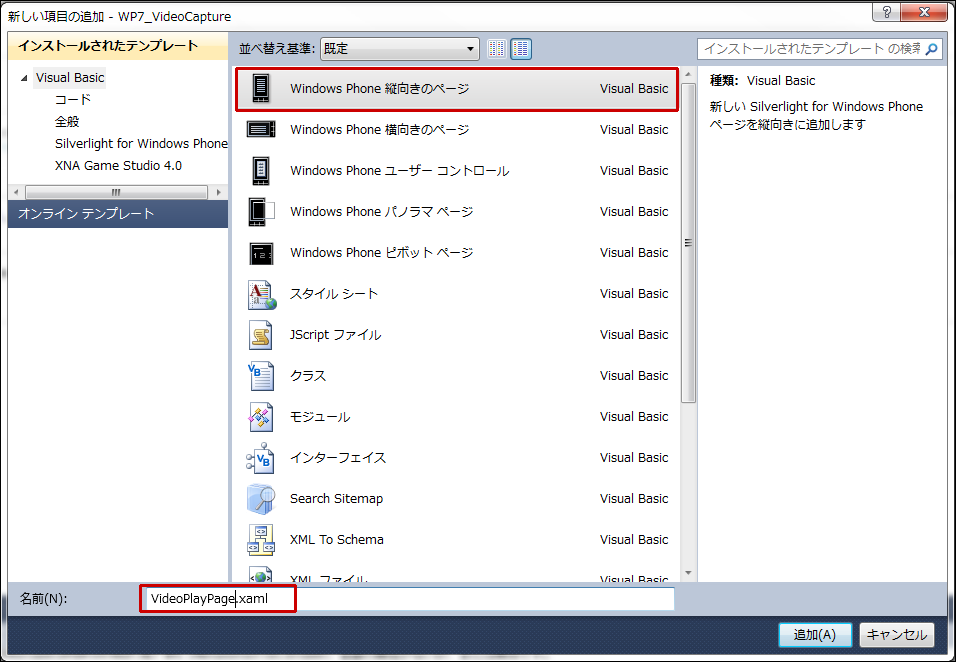
VS2010メニューの[プロジェクト(P)/新しい項目の追加(W)]と選択し、「Windows Phone 縦向きのページ」を選択します。「名前(N)」にはVideoPlayPage.xamlと入力します(図3)。
|
| 図3:「Windows Phone 縦向きのページ」(VideoPlayPage.xaml)を作成する(クリックで拡大) |
「動画を撮影して分離ストレージに保存し、再生する」のサンプルファイル
You don't have access to download this file.
この記事をシェアしてください
バックナンバー


この記事の筆者

Think ITでは、技術情報が詰まったメールマガジン「Think IT Weekly」の配信サービスを提供しています。メルマガ会員登録を済ませれば、メルマガだけでなく、さまざまな限定特典を入手できるようになります。

