


Windows ストア空白のページの作成(WebBrowserPage.xaml)
<Page
  xmlns="http://schemas.microsoft.com/winfx/2006/xaml/presentation"
  xmlns:x="http://schemas.microsoft.com/winfx/2006/xaml"
  xmlns:local="using:FromPostalCodeToAddress"
  xmlns:d="http://schemas.microsoft.com/expression/blend/2008"
  xmlns:mc="http://schemas.openxmlformats.org/markup-compatibility/2006"
  xmlns:Controls="using:WinRTXamlToolkit.Controls"
  x:Class="FromPostalCodeToAddress.MainPage"
  mc:Ignorable="d">
  <Page.Resources>■(1)
    <DataTemplatex:Key="ListBoxTemplate">■(1)
      <StackPanel Background="SlateBlue" Margin="10">■(1)
        <TextBlock Text="{Binding zipcode}" Foreground="Gold" FontSize="36"/>■(1)
        <StackPanel Orientation="Horizontal" Width="1110" Margin="10">■(1)
          <TextBlock Text="{Binding prefecture}" FontSize="32" Foreground="White"/>■(1)
          <TextBlock Text="{Binding city}" FontSize="32" Foreground="White"/>■(1)
          <TextBlock Text="{Binding town}" FontSize="32" Foreground="White"/>■(1)
        </StackPanel>■(1)
      </StackPanel>■(1)
    </DataTemplate>■(1)
  </Page.Resources>■(1)
    <Grid Background="{StaticResourceApplicationPageBackgroundThemeBrush}">
    <ScrollViewerHorizontalScrollBarVisibility="Visible">■(2)
      <Grid Height="768" Width="2582">
        <StackPanel Orientation="Horizontal" VerticalAlignment="Top" Margin="-37,0,37,0">■(3)
          <StackPanel>■(4)
          <Button x:Name="backButton" HorizontalAlignment="Left" Height="Auto"  Style="{StaticResourceBackButtonStyle}" VerticalAlignment="Top" />■(4)
          </StackPanel>■(4)
          <StackPanel Margin="100,0,70,0">■(5)
          <Image HorizontalAlignment="Left" Height="147"  VerticalAlignment="Top" Width="60" Source="Image/post.png"/>■(5)
          </StackPanel>■(5)
          <StackPanel Margin="100,0,50,50">■(6)
            <TextBlockHorizontalAlignment="Left" Height="99" TextWrapping="Wrap" Text="郵便番号検索" VerticalAlignment="Top" Width="449" FontFamily="Meiryo UI" FontSize="72"/>■(6)
          </StackPanel>■(6)
        </StackPanel>■(4)
        <Controls:WatermarkTextBoxx:Name="WatermarkTextBox1" HorizontalAlignment="Left" Height="86" Margin="52,184,0,0" TextWrapping="Wrap" VerticalAlignment="Top" Width="1123" WatermarkText="住所を入力してください・・・・・" FontFamily="Meiryo UI" FontSize="48"/>■(7)
        <Button x:Name="okButton" Content="OK" HorizontalAlignment="Left" Height="86" Margin="1194,184,0,0" VerticalAlignment="Top" Width="139" FontFamily="Meiryo UI" FontSize="48"/>■(8)
        <ListBoxHorizontalAlignment="Left" Height="437" Margin="76,315,0,0" VerticalAlignment="Top" Width="1123" Background="Navy" />■(9)
        <ListBoxx:Name="ResultListBox" HorizontalAlignment="Left" Height="437" Margin="52,293,0,0" VerticalAlignment="Top" Width="1123" ItemTemplate="{StaticResourceListBoxTemplate}" Background="White" BorderBrush="Black"/>■(10)
        <Frame x:Name="myFrame" HorizontalAlignment="Left" Height="768" VerticalAlignment="Top" Width="1314" Margin="52,0,0,0"/>■(11)
      </Grid>
      </ScrollViewer>■(2)
    </Grid>
</Page>

Windows ストア空白のページの作成(WebBrowserPage.xaml)
VS2012のメニューの「プロジェクト(P)/新しい項目の追加(W)」と選択して、左に表示される項目からWindows ストアを選択します。
右に表示されるテンプレートから「空白のページ」を選択します。「名前(N):」にはWebBrowserPage.xamlと指定して、[追加(A)]ボタンをクリックします。
コントロールの配置
ツールボックスからWebBrowserPage.xamlのデザイン画面上にWinRTXAML Toolkitのコントロールである、WebBrowserコントロールを1個配置します。名前にはWebBrowser1としておきます。
書き出されるXAMLコードは省略します。レイアウトは図5のようになります。
もし、WebBrowserが表示されない場合は、ソリューションエクスプローラー内の参照設定を右クリックして表示されるメニューから「NuGetパッケージの管理」を選択して、再度WinRT XAML Toolkitを追加し、VS2012を再起動してください。
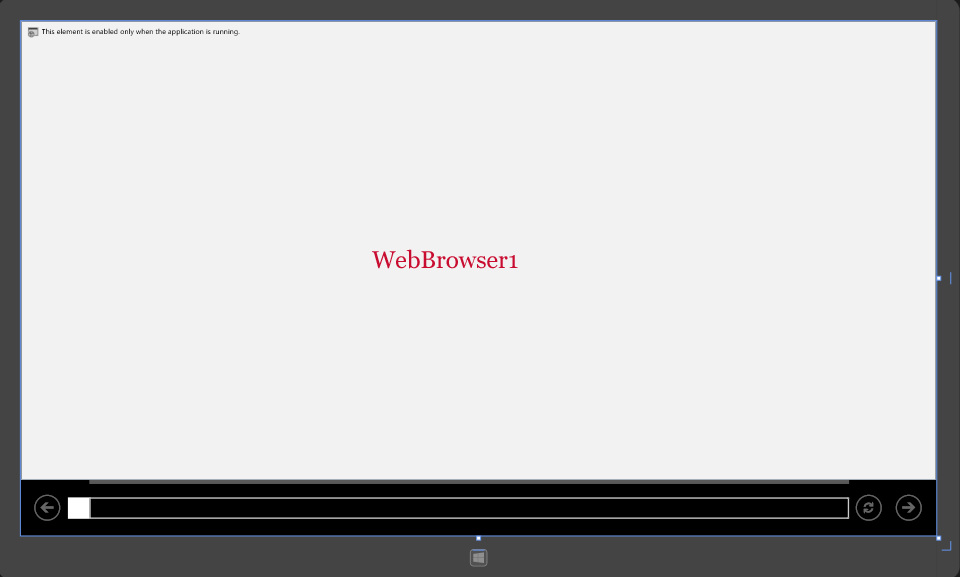
次に、ソリューションエクスプローラー内のMainWindow.xamlを展開して表示される、MainWindow.xaml.vbをダブルクリックしてリスト2のコードを記述します。
ロジックコードを記述する
リスト2 (MainWindow.xaml.vb)
Option Strict On
最新の HTTP アプリケーション用のプログラミングインターフェイスを提供するクラスの含まれる、System.Net.Http名前空間をインポートします。
Imports System.Net.Http
AddressInfoクラス内に文字列型のzipcode、prefecture、city、townプロパティを定義しておきます。
Public Class AddressInfo
  Property zipcode As String
  Property prefecture As String
  Property city As String
  Property town As String
End Class

Public NotInheritable Class MainPage
  Inherits Page
- この記事のキーワード
この記事をシェアしてください
関連記事

バックナンバー


この記事の筆者

Think ITでは、技術情報が詰まったメールマガジン「Think IT Weekly」の配信サービスを提供しています。メルマガ会員登録を済ませれば、メルマガだけでなく、さまざまな限定特典を入手できるようになります。

